The Best Fluffy Pancakes recipe you will fall in love with. Full of tips and tricks to help you make the best pancakes.

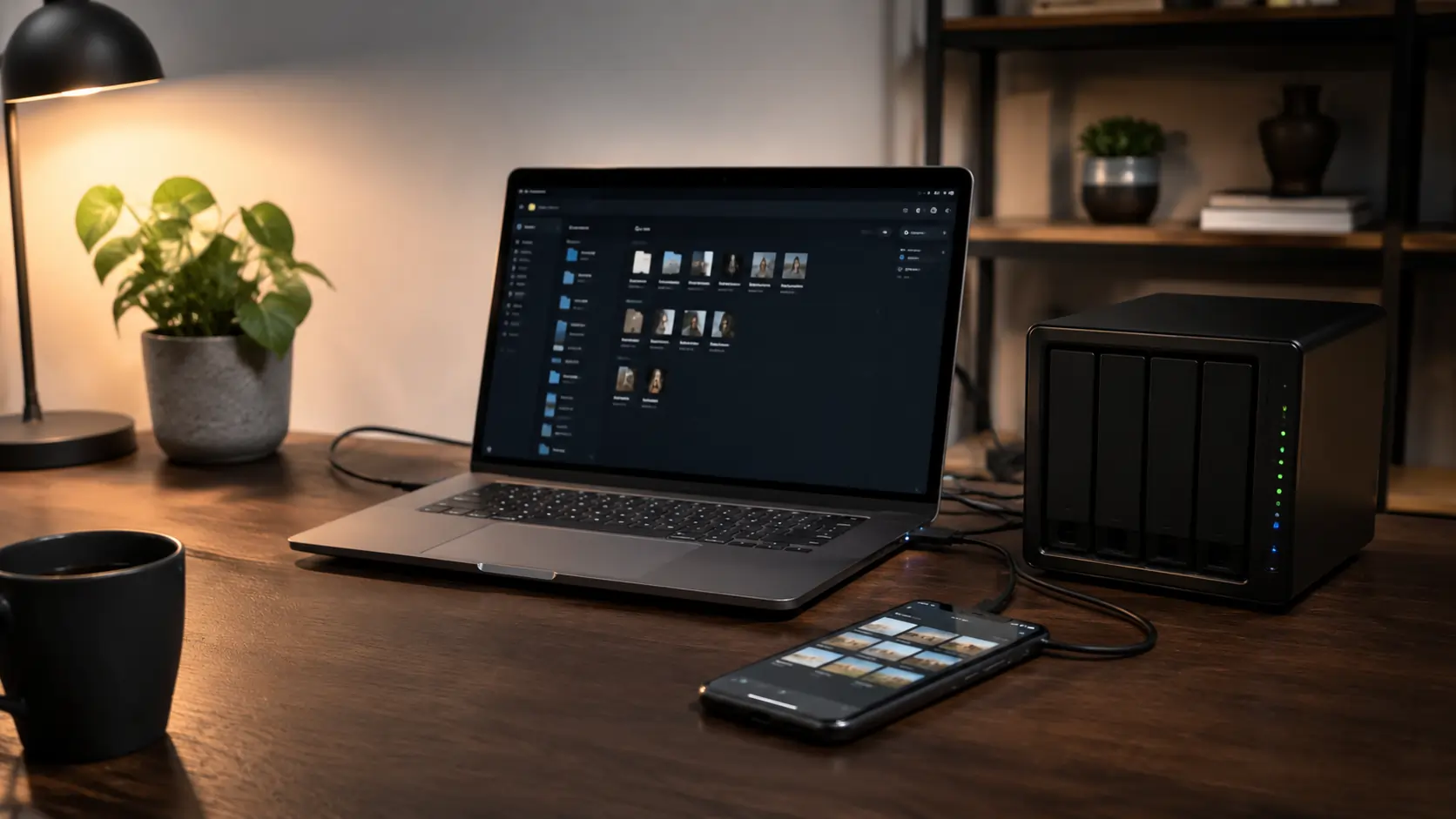
Losing a phone is stressful. Losing years of photos, messages, and files is worse. Many people use cloud services by default, but others want more control over where their data lives. If you want to Backup Your Phone Automatically Without iCloud or Google, there are several reliable ways to do it using your own computer, storage drive, or home network.
The good news is that modern phones already support local backups better than most people realize. You do not need advanced technical skills, expensive software, or monthly subscriptions. In many cases, you can create a backup system that runs quietly in the background and keeps your files safe without sending them to a large cloud provider.
Key Takeaways
- Local phone backups give you more control over privacy and storage costs
- A home computer or NAS can automatically store photos and files
- Android users can automate backups with apps like FolderSync
- iPhone users can create full local backups through Finder or iTunes
- Offsite backups still matter, even if you avoid cloud platforms
- Testing your backups is just as important as creating them
Why People Want Alternatives to iCloud and Google Photos
Cloud storage is convenient. Services from Apple Inc. and Google work well for many people. Photos sync quickly, devices restore easily, and backups happen automatically.
Still, there are valid reasons to look for another option.
The first issue is storage limits. Many users eventually hit free storage caps and are pushed toward monthly subscriptions. That may not seem expensive at first, but ongoing costs add up over several years.
Privacy is another reason. Some people simply feel more comfortable keeping family photos, personal documents, and backups on hardware they own themselves. This is especially common among users who already store files on external drives or home servers.
There is also the issue of control. A local backup remains available even if a service changes pricing, removes features, or experiences downtime. That does not mean cloud storage is bad. In fact, cloud services remain one of the easiest backup methods available. However, many users want a second layer of protection that stays fully under their control.
That is where local and self-hosted backups become useful.
What Should a Good Phone Backup Include?
Before setting up anything, it helps to understand what should actually be backed up.
For most people, the important items are:
- Photos and videos
- Contacts
- Text messages
- Notes and documents
- App data
- Device settings
Some backup methods create a full image of the phone. Others only sync selected folders such as your camera roll. The best choice depends on how much automation and recovery capability you want.
A full-device backup is easier when restoring a lost phone. Folder syncing is more flexible and usually faster for everyday use.
Option 1: Backup to Your Computer With a Cable
The simplest method is still one of the most reliable. Connect your phone directly to a computer and create local backups on a schedule.
iPhone: Finder or iTunes Local Backup
If you use a Mac running newer versions of macOS, backups happen through Finder. Older Macs and Windows PCs use iTunes.
Once connected by USB cable, you can create a full encrypted backup directly to your computer. This stores settings, messages, app data, and photos locally instead of on iCloud.
Encrypted backups are important because they also save passwords and health data. Without encryption, some information is skipped.
After the first setup, many people choose one regular backup time each week. Sunday evening or Friday night tends to work well because the phone is usually at home and charging.
Android: Simple File Transfer
Android backups are more flexible but slightly less centralized.
On Windows, most Android phones appear like a regular storage device once connected. You can drag folders such as DCIM, Downloads, and Documents directly to your PC.
Mac users often rely on Android File Transfer or similar tools for copying files.
This approach is not fully automatic, but it is dependable and easy to understand. Many users prefer it because they always know exactly where their files are stored.
How Often Should You Back Up Your Phone?
The answer depends on how often your data changes.
Someone who takes hundreds of photos each week may want nightly syncing. Someone who mainly uses messaging apps might only need weekly backups.
A simple rule works well:
| Type of User | Suggested Backup Schedule | Best Method |
|---|---|---|
| Casual phone user | Once per week | Computer backup |
| Frequent photo/video user | Every night | NAS or FolderSync |
| Work phone user | Daily | Automated local sync |
| Traveler or content creator | Multiple times per day | NAS + external backup |
Consistency matters more than complexity. A simple backup that runs regularly is far safer than an advanced setup that is rarely used.
Option 2: Use a NAS for Automatic Backups
A NAS, or Network Attached Storage device, is essentially a private file server inside your home.
Brands like Synology and QNAP make small NAS devices that connect to your Wi-Fi network. Once configured, your phone can automatically upload files whenever it connects to your home internet.
For many people, this is the best long-term solution.
Why a NAS Works So Well
A NAS combines several advantages:
- Automatic syncing
- Large storage capacity
- No monthly cloud fee
- Access from multiple devices
- Full control over your files
Most NAS systems include companion apps that behave similarly to Google Photos or iCloud Photo Library. Photos upload in the background while the phone charges or connects to Wi-Fi.
For example, Synology offers photo syncing apps that automatically transfer new images to your home storage.
Budget NAS Options
You do not need enterprise hardware. Entry-level NAS systems with one or two drive bays are enough for most families.
Many users start with:
- One NAS enclosure
- One 2TB or 4TB hard drive
- Automatic photo sync enabled
That setup often stores years of phone backups.
The biggest benefit is peace of mind. Your files remain accessible without depending entirely on a third-party service.
Option 3: FolderSync for Android Automation
Android users have one particularly powerful option: FolderSync.
This app allows automatic syncing between your phone and almost any storage location. That includes:
- Windows PCs
- NAS devices
- External drives
- FTP servers
- Shared folders on your network
For users trying to Backup Your Phone Automatically Without iCloud or Google, this is one of the most flexible tools available.
How FolderSync Works
You select a source folder on your phone, such as the camera folder, then choose a destination on your network.
After setup, the app can sync automatically:
- Every night
- Only while charging
- Only on Wi-Fi
- Only when battery levels are high
That means backups happen quietly in the background.
A common setup is syncing the DCIM folder to a shared folder on a home PC at 2 AM every night.
Settings That Improve Reliability
To avoid failed syncs, several settings help:
- Disable battery optimization for FolderSync
- Allow background activity
- Use Wi-Fi-only transfers
- Enable retry attempts
Modern Android versions sometimes limit background apps aggressively. These settings prevent the phone from stopping the backup process.
Option 4: iPhone and Mac Local Backup Workflows
Apple users can also create surprisingly strong local backup systems without iCloud.
Import Photos With Image Capture
The built-in Image Capture app on macOS can automatically import photos from an iPhone to a local folder.
This is useful for people who mainly care about preserving photos and videos rather than full device restores.
Once connected, photos transfer directly to the Mac without touching cloud storage.
AirDrop for Quick Transfers
AirDrop is not automatic, but it is fast enough that many users rely on it daily.
Creating one dedicated “Phone Backup Photos” folder on a Mac keeps everything organized. Transfers only take a few seconds for smaller batches of images.
Shortcuts and Automation
Advanced users sometimes create automation workflows using the Shortcuts app.
For example:
- Connect phone to charger
- Join home Wi-Fi
- Automatically start photo transfer
- Save files to local storage
This requires more setup than Android automation tools, but it works surprisingly well once configured.
Why Local Backups Alone Are Not Enough
Many people assume a local backup solves everything. Unfortunately, local-only storage has one major weakness.
If something happens to your house, both the phone and the backup may disappear together.
Fire, flooding, theft, or electrical damage can destroy all copies at once.
That is why professionals recommend the “3-2-1” backup rule:
- 3 copies of important data
- 2 different storage types
- 1 copy stored offsite
You do not necessarily need commercial cloud storage to achieve this.
Offsite Backup Without Big Cloud Platforms
There are several ways to create offsite protection while still avoiding traditional cloud services.
External Drive at Another Location
One simple method is rotating an external hard drive between homes.
For example, some people keep one backup drive at a relative’s house and update it monthly.
It is not fully automatic, but it provides genuine disaster protection.
Private Server or VPS
More advanced users sometimes rent a private server and encrypt their backups before uploading them.
This approach requires technical knowledge, but it gives maximum control over privacy and storage.
Encrypted backup software ensures that even the server provider cannot read your files.
NAS-to-NAS Replication
Some NAS systems can replicate backups between two homes automatically.
One device remains at your house while another stays at a family member’s house. Files sync securely over the internet in the background.
This setup is more advanced but extremely reliable.
How to Protect Backup Privacy
People who avoid large cloud services usually care about privacy as much as convenience.
Fortunately, several simple practices improve backup security.
Use Encryption Whenever Possible
Encrypted backups prevent unauthorized access if a drive is lost or stolen.
Both iPhone local backups and many NAS systems support encryption directly inside their settings.
Protect Shared Network Folders
Do not leave backup folders open without passwords.
A password-protected shared folder keeps your files safer from accidental access inside your network.
Keep Backup Software Updated
Old synchronization apps can develop security problems over time. Updating backup software regularly reduces risk.
Testing Your Backup Matters More Than Creating It
Many people assume a backup worked simply because no errors appeared.
That assumption causes problems later.
A backup only matters if it can actually restore files successfully.
Restore One File First
The easiest test is simple:
- Open the backup folder
- Restore one image or video
- Confirm it opens correctly
This takes less than a minute and confirms the process actually worked.
Verify Full Device Backups
For full phone backups, check that backup software recognizes the saved device properly.
Programs usually display:
- Backup date
- Device name
- Backup size
- Encryption status
If that information appears correctly, the backup is likely healthy.
Use Calendar Reminders
Quarterly reminder checks work well for most people.
A simple calendar alert every three months prevents months of failed backups from going unnoticed.
Common Mistakes People Make With Phone Backups
Several mistakes appear repeatedly when users first try local backups.
Keeping Only One Copy
One backup is better than none, but multiple copies are safer.
Drives fail eventually. Important data should exist in more than one place.
Forgetting Videos
Phone videos consume huge amounts of storage. Many people back up photos but accidentally skip videos.
Always verify that video folders are included.
Assuming Automatic Means Permanent
Automation helps, but storage devices still need occasional monitoring.
Hard drives can fail silently. NAS systems may run out of space. Backup logs should be checked occasionally.
Is Avoiding Cloud Services Worth It?
For many users, yes. For others, probably not.
Cloud services remain extremely convenient. They are easy to set up, easy to restore from, and require almost no maintenance.
However, local backups offer several advantages:
- More control
- No recurring fees
- Better privacy
- Faster access on local networks
- Independence from service changes
The best solution for many households is actually a hybrid approach.
Some users keep iCloud or Google Photos active while also maintaining local backups at home. That combination provides both convenience and redundancy.
Frequently Asked Questions
Is it safe to Backup Your Phone Automatically Without iCloud or Google?
Yes, as long as backups are encrypted and stored securely. A properly configured local backup system can be extremely reliable and private.
What is the easiest automatic backup option for Android?
FolderSync is one of the simplest free solutions for Android users. It supports scheduled syncing to computers, NAS systems, and shared network folders.
Can iPhones back up automatically without iCloud?
Yes. iPhones can create local backups through Finder or iTunes. Automation is more limited than Android, but local workflows still work well.
What happens if my backup drive fails?
That is why multiple copies matter. Important backups should exist on more than one device, ideally with one copy stored offsite.
Do I need a NAS to avoid cloud storage?
No. A regular computer and external hard drive are enough for many people. A NAS mainly adds convenience and automation.
Conclusion
Choosing to Backup Your Phone Automatically Without iCloud or Google does not mean rejecting cloud technology completely. It simply means taking more control over where your files live and how they are protected.
For some people, a simple weekly computer backup is enough. Others prefer fully automated syncing to a NAS or private server. The best setup is the one you will actually maintain consistently.
The important part is having a backup at all. Phones fail, get lost, and suffer accidental damage every day. A reliable local backup system protects years of memories and files before something goes wrong.
If you are improving your digital setup further, consider reading a related guide about organizing and protecting files across multiple devices.