The Best Fluffy Pancakes recipe you will fall in love with. Full of tips and tricks to help you make the best pancakes.

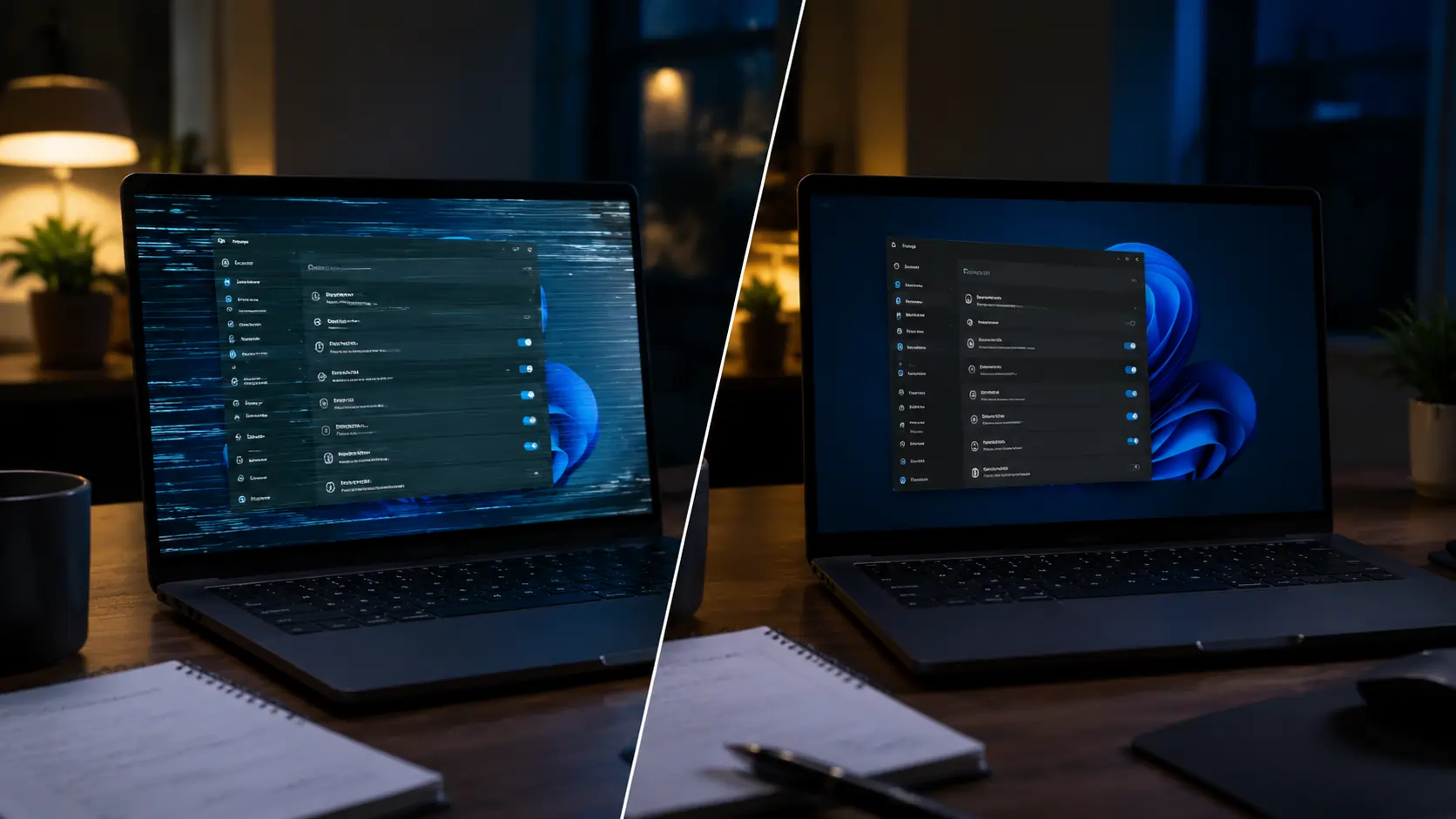
My laptop screen had been flickering for three weeks. I was preparing to pay for a repair because the problem kept getting worse during work calls and videos. Then one free Windows setting change stopped it completely. If you are dealing with the same issue, there is a good chance you can fix it without replacing the screen or buying a new laptop.
The tricky part is that screen flicker can come from several different causes. Sometimes it is a bad display driver after a Windows update. Other times it is a refresh rate mismatch, a buggy app, or a hardware issue. The good news is that most flickering problems can be diagnosed in less than 15 minutes.
Before spending money, work through the free fixes below. Many people solve the issue with one small setting change.
Key Takeaways
- Screen flickering is often caused by software, not damaged hardware
- The Task Manager test helps identify whether the problem is a driver or an app
- Rolling back a display driver can stop flickering immediately
- Refresh rate settings sometimes create instability on certain laptop panels
- Apps using hardware acceleration can conflict with graphics drivers
- Flicker on the BIOS screen usually points to a hardware problem
- Most fixes cost nothing and take only a few minutes
What Does Laptop Screen Flickering Actually Look Like?
Not all flickering problems look the same. That matters because different symptoms usually point to different causes.
Some laptops show a rapid flashing effect across the entire display. Others dim and brighten slowly every few seconds. In some cases, only the taskbar flickers while the rest of the screen looks normal.
Before changing settings, take a minute to notice the pattern.
Fast Flicker vs Slow Pulsing
A fast flicker usually points to a graphics driver problem. This often happens after a Windows update installs a new driver automatically.
A slower pulsing brightness change is more commonly linked to power settings, adaptive brightness, or refresh rate problems.
If the screen flickers only while gaming or watching videos, hardware acceleration or variable refresh rate settings may be involved.
Full Screen Flicker vs Taskbar Flicker
A full-screen flicker is often tied to display drivers or hardware.
A taskbar-only flicker usually comes from Windows Explorer or a specific application running in the background.
This difference helps narrow down the cause quickly.
Recording the Flicker Can Help
One useful trick is recording the screen with your phone. Sometimes the flicker happens too fast to notice clearly with your eyes.
The recording also helps if you eventually need technical support. A repair shop can often identify the problem pattern from a short video clip.
That simple step can save time later.
The Task Manager Test: The Fastest Way to Diagnose the Problem
This is one of the most useful tests for anyone trying to troubleshoot flickering.
Open Task Manager while the flicker is happening.
Press:
- Ctrl + Shift + Esc
- Or right-click the taskbar and select Task Manager
Now watch carefully.
If Task Manager Flickers Too
If Task Manager flickers along with the rest of the screen, the issue is usually related to the graphics driver or hardware.
This points toward problems with:
- Display drivers
- Refresh rate settings
- GPU instability
- Physical display hardware
That means the next sections are especially important.
If Task Manager Stays Stable
If Task Manager remains perfectly stable while everything else flickers, a third-party application is likely causing the issue.
Common app-related causes include:
- Browser hardware acceleration
- Video conferencing software
- Overlay tools
- Screen recording utilities
This test helps separate software conflicts from system-level display issues very quickly.
The $0 Fix That Worked: Rolling Back the Display Driver
For many users, including people affected after Windows updates, the real fix is rolling back the graphics driver.
Sometimes a newer driver introduces instability with certain laptop displays. This happens with graphics drivers from Intel, NVIDIA, and AMD more often than people expect.
A Windows update can install a driver that technically works but causes screen instability.
How to Roll Back the Display Driver
Follow these steps carefully:
- Right-click the Start button
- Open Device Manager
- Expand “Display adapters”
- Right-click your graphics adapter
- Select Properties
- Open the Driver tab
- Click “Roll Back Driver”
Restart the laptop afterward.
For many people, the flickering stops immediately after rebooting.
What If “Roll Back Driver” Is Greyed Out?
Sometimes Windows removes older driver versions automatically.
If the rollback button is unavailable, try this instead:
- Visit the laptop manufacturer’s support page
- Download an older graphics driver version
- Install it manually
Manufacturers like Dell, HP, and Lenovo often provide stable older drivers for their laptops.
Avoid downloading random drivers from unofficial websites.
Why Driver Rollback Works
New drivers are designed for many hardware combinations. Sometimes older laptops react badly to updated graphics optimizations.
Rolling back restores the version that previously worked correctly with your specific screen panel and hardware.
That is why this fix feels surprisingly effective for something that costs nothing.
Refresh Rate Settings Can Cause Flickering Too
Another free fix involves the refresh rate setting.
Laptop displays are designed to run best at specific refresh rates. If Windows switches to the wrong setting after an update, instability can appear.
How to Check Refresh Rate Settings
Go to:
Settings > System > Display > Advanced Display
Look for the refresh rate section.
Most laptops use:
- 60Hz
- 120Hz
- 144Hz
Why 59Hz Sometimes Fixes the Problem
This sounds strange, but changing from 60Hz to 59Hz can stop flickering on some systems.
The reason involves how Windows handles timing with certain display panels.
Likewise, changing from 59Hz back to 60Hz can also help.
The important thing is testing both options.
High Refresh Rate Panels Can Become Unstable
Gaming laptops with high refresh rate displays sometimes flicker during low frame rates or battery-saving modes.
This is especially common after graphics driver updates.
Switching temporarily to 60Hz can help confirm whether refresh rate instability is involved.
If the flicker disappears, the issue likely comes from synchronization between the display and GPU.
Apps Using Hardware Acceleration Can Trigger Flickering
Sometimes the laptop itself is fine. The problem comes from software conflicts.
Modern apps often use hardware acceleration to improve performance. That means the app asks the graphics card to handle certain tasks directly.
Unfortunately, this can create display instability.
Apps Commonly Linked to Flickering
Several programs are known to cause display problems on some systems, including:
- Older versions of Google Chrome
- Discord
- Zoom
- Streaming software
- Browser extensions
This does not mean the apps are broken. It usually means they conflict with specific graphics drivers.
How to Disable Hardware Acceleration in Chrome
Open Chrome settings and go to:
Settings > System
Then turn off:
“Use hardware acceleration when available”
Restart the browser afterward.
Many users notice the flicker disappear immediately.
Why Hardware Acceleration Causes Problems
Hardware acceleration pushes more graphical tasks to the GPU. If the graphics driver is unstable, visual glitches can appear.
Disabling the feature shifts more work back to the CPU instead.
That trade-off slightly reduces efficiency but often improves stability.
Variable Refresh Rate and Power Settings Can Also Be Responsible
Modern Windows laptops include several display optimization features designed to save battery life or improve gaming smoothness.
Unfortunately, these settings sometimes create screen flicker.
Variable Refresh Rate (VRR)
Variable refresh rate technology changes the display refresh rate dynamically.
Technologies like:
- G-Sync
- FreeSync
- Adaptive Sync
can sometimes cause flickering during low frame rates.
How to Disable VRR in Windows
Go to:
Settings > System > Display > Graphics > Default graphics settings
Then disable:
“Variable refresh rate”
Restart the laptop after changing the setting.
This fix helps especially on gaming laptops.
Battery Saver and Adaptive Brightness
Battery-saving features can dim the display unevenly.
Some laptops constantly adjust brightness based on:
- Battery level
- Screen content
- Room lighting
This creates a pulsing brightness effect that feels like flickering.
Turning Off Adaptive Brightness
Search Windows for:
“Change brightness automatically”
Disable any automatic brightness or adaptive contrast settings you find.
Afterward, set brightness manually and watch whether the flickering stops.
When the Flicker Is Actually a Hardware Problem
Not every case of Laptop Screen Flicker With a $0 Windows fix will end with a software solution.
Sometimes the hardware really is failing.
The key is recognizing the warning signs early.
Signs the Problem Is Hardware Related
Certain symptoms strongly suggest a physical issue:
| Symptom | Likely Cause |
|---|---|
| Flicker appears on BIOS screen | Hardware problem |
| Flicker changes when opening or closing lid | Loose display cable |
| Pink or green lines appear | Failing display panel |
| Screen dims permanently | Backlight failure |
| External monitor works perfectly | Laptop screen hardware issue |
Flicker on the BIOS Screen
Restart the laptop and enter the BIOS or startup menu.
If the screen flickers there too, Windows is not responsible.
That means the issue likely involves:
- Display cable
- Screen panel
- GPU hardware
- Internal connectors
Software fixes usually will not help in this situation.
Loose Display Cable Symptoms
A loose internal display cable often causes flickering when the lid moves.
For example:
- Flicker appears only at certain angles
- Tilting the screen changes the behavior
- Slight pressure behind the display affects the image
Repair costs vary, but cable repairs are often cheaper than replacing the full screen.
Backlight Failure Signs
Backlight problems create a different look.
Instead of flashing, the screen may:
- Become extremely dim
- Flicker more at low brightness
- Show uneven lighting patches
Backlight repairs usually cost more than simple cable fixes.
Could Windows Updates Be Responsible?
Yes. This happens more often than many people realize.
Windows updates sometimes install:
- New display drivers
- Display firmware
- Graphics optimizations
Most updates improve stability, but some create compatibility problems on older laptops.
How to Check for Recent Updates
Go to:
Settings > Windows Update > Update History
Look for updates installed shortly before the flickering started.
If the timing matches, the update may be involved.
Should You Pause Updates?
Usually no.
Security updates are important. Instead of disabling updates completely, focus on:
- Rolling back the display driver
- Installing manufacturer-approved drivers
- Updating BIOS firmware if recommended
That approach is safer long term.
External Monitors Can Help Diagnose the Problem
One easy troubleshooting step is connecting the laptop to an external monitor or TV.
This tells you whether the issue comes from the screen itself or the graphics system.
If the External Monitor Looks Fine
If the external display is perfectly stable while the laptop screen flickers, the problem usually involves:
- Laptop display panel
- Internal cable
- Laptop screen hardware
If Both Screens Flicker
If both displays flicker at the same time, the issue likely comes from:
- Graphics drivers
- GPU instability
- Windows settings
- Hardware acceleration conflicts
This simple test removes a lot of guesswork.
How to Prevent Screen Flicker in the Future
After fixing the issue, a few habits can reduce the chance of it returning.
Keep Graphics Drivers Stable
Do not install random beta drivers unless necessary.
Using manufacturer-approved drivers is often safer for laptops.
Avoid Overheating
Excess heat stresses graphics hardware.
Keep vents clean and avoid blocking airflow during gaming or video editing.
Update Apps Regularly
Outdated browsers and communication apps sometimes conflict with newer graphics systems.
Keeping software current improves compatibility.
Restart Occasionally
Many people leave laptops running for weeks without restarting.
A restart clears temporary driver and memory issues that sometimes contribute to flickering.
FAQ
Why does my laptop screen flicker only when charging?
This often points to refresh rate settings, adaptive brightness, or power-saving features switching automatically when the charger connects. Try changing the power plan and disabling adaptive brightness.
Can a bad HDMI cable cause screen flickering?
Yes. Damaged or low-quality HDMI cables can create flickering on external monitors. Testing another cable is a quick way to rule this out.
Is screen flickering dangerous for the laptop?
Usually no, but persistent flickering may indicate a failing display cable or graphics hardware. Ignoring severe symptoms can sometimes lead to worsening problems.
Why does screen flickering stop in Safe Mode?
Safe Mode loads basic drivers instead of full graphics drivers. If flickering disappears there, the problem is likely software or driver related.
Final Thoughts
Laptop display problems feel expensive because many people immediately assume the screen is dying. In reality, a surprising number of flickering issues come from software conflicts, refresh rate mismatches, or unstable display drivers.
The most effective free fix for many users is still the same one discussed earlier: rolling back the graphics driver after a Windows update. Combined with refresh rate adjustments and hardware acceleration changes, these fixes solve a large percentage of cases without any repair bill.
If the flicker appears in the BIOS screen or changes when moving the lid, hardware may be involved. But before paying for a repair, it makes sense to try every software fix first. Many cases of Laptop Screen Flicker With a $0 Windows fix truly are solved with a single setting change.
For related troubleshooting, consider reading another guide about improving laptop performance and reducing overheating.